
Using FTP User Isolation to secure your IIS 8 site
FTP User Isolation is one of the best ways to secure your IIS 8 FTP site and prevent users from accessing restricted content. Whether your Windows Cloud server provides dedicated hosting or shared hosting, leveraging FTP user isolation will provide an additional layer of security over the standard authentication and authorization. This is especially helpful for web servers that only have a few IP addresses and have multiple users who require FTP access. In this scenario, you would create one main FTP site with multiple virtual directories for the various users. Even if your web server has additional IP addresses for multiple FTP sites, you can still implement it. FTP User Isolation can be leveraged anytime you want to restrict users to specific content folders within a site.
In this walkthrough I demonstrate how to configure FTP User Isolation with IIS 8 and then how to test that it is working properly.
Getting Started
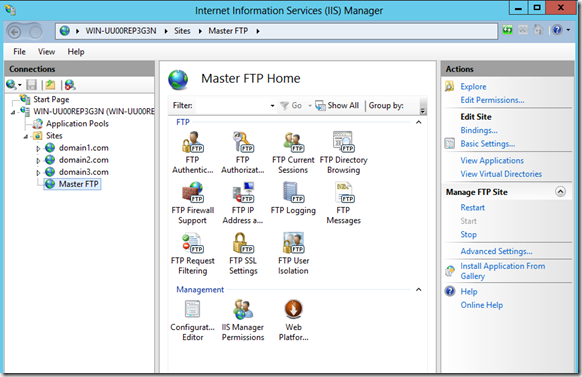
As shown in IIS Manager below, I have set up 3 websites and 1 FTP site. The root folder of the FTP site points to c:\inetpub\ftproot.
Click on FTP Authentication and confirm that Anonymous Authentication is disabled and Basic Authentication is enabled.

Create Local Users and FTP Group
Using the Computer Management Snap-In, I have created 3 local users that will be used for logging in to the FTP site. They are called ftpuser1, ftpuser2, and ftpuser3.

Next I create a local user group called FTPUsers and add the 3 user accounts. Then I add this group to the NTFS permissions of c:\inetpub\ftproot.

Configure FTP Authorization Rules
Returning back to the Features view of the FTP site in IIS Manager, I click on the FTP Authorization icon. In the settings, select Specified roles or user groupsand enter the FTPUsers local groupthat was just created in the previous step. Storing all the FTP users in one local group will make the FTP site considerably easier to maintain in the future if new users are added. Next click the checkboxes for Read and Write permissions. Click OK to close the window.

Configure the LocalUser Virtual Directory
The next step is to create a virtual directory on the FTP site called LocalUser. This is a special directory that is needed to make user isolation work as expected. In IIS Manager, right-click on the FTP site and select Add Virtual Directory.

On the Add Virtual Directory properties, enter the name LocalUser for the Alias. For the Physical path, specify the root folder of the FTP site.

Create FTP User Virtual Directories
After creating the LocalUser virtual directory, we need to create an additional virtual directory under it for each FTP user that will be accessing the FTP site. On the Add Virtual Directory properties, enter the FTP user name and specify the destination path of the folder where their files are located. In the example below, ftpuser1 will have access to c:\domains\domain1.com. Repeat this step for the other FTP users.

In the picture below we can see the FTP site has been set up with the LocalUser virtual directory and below it, the virtual directories for the 3 FTP users.

Configure FTP User Isolation
On the Features view of the FTP site, click on FTP User Isolation. Under Isolate users, select User name directory (disable global virtual directories) as shown below. If your FTP site will only have 1 admin user you do not need to configure isolation; in that case just select the option FTP Root directory.

Test Your FTP Client
Now that we’ve finished configuring the FTP server, we can try connecting to it with an FTP client. In the picture below you can see that I am using ftpuser1 and am logged into the root directory of the site domain1.com.

I can test if the user isolation settings are working properly by trying to change the path of my FTP client to the root directory of one of the other FTP users, or by simply going up to a parent folder. With IIS 6, this would have been possible. If you couldn’t guess the path for another user, you could usually at least get to the root folder for the FTP site. In certain cases once you reached the root folder of the FTP site, you would have been able to see folders for other users.
In the picture below you can see that I am logged into the root folder of domain2.com as ftpuser2. However, when I attempt to change to the directory of ftpuser1 I receive an error message. The error message is not about invalid permissions but simply that the folder does not exist. If I were to repeat the test using the other accounts I would get the same result. Thanks to the FTP User Isolation settings, the other FTP users’ folders are completely unreachable. Each FTP user on the server is completely isolated from the other users.

Summary
With IIS 8, Microsoft provides the highest level of FTP security to date. With FTP User Isolation, system administrators have an easy way to protect website content from other FTP users. This feature is especially helpful for FTP servers with multiple users needing access to separate file paths.