
Subject: Sensor Map companylogo
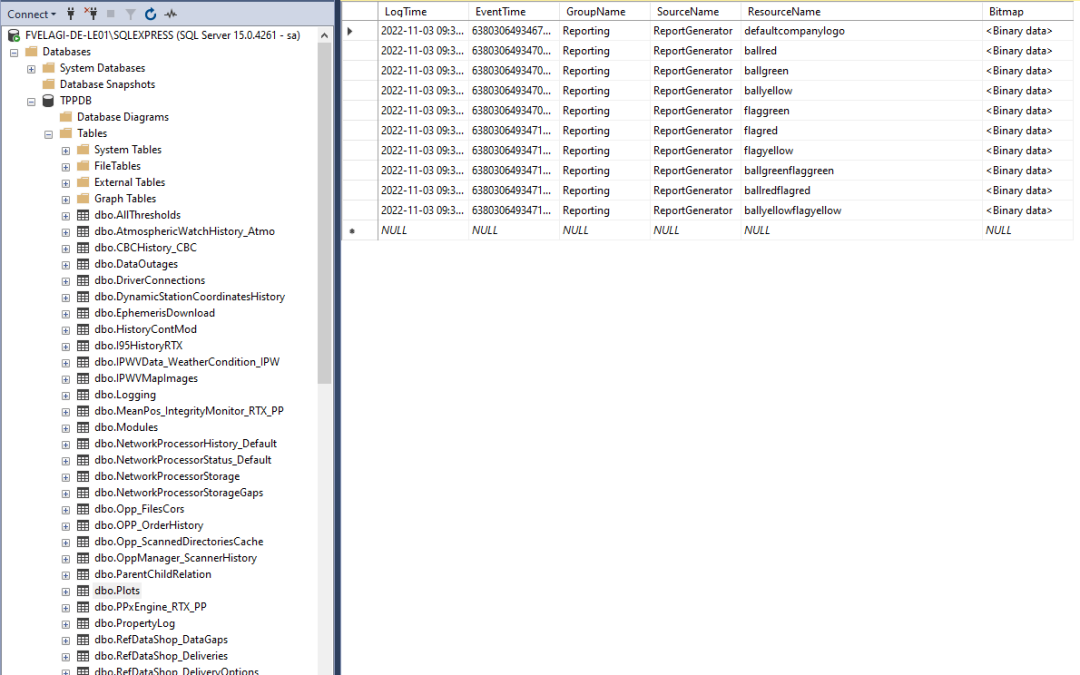
Solution: The new logo must uploaded to database and the old logo must be deleted or the name must be edited.
Using Visual Studio navigate to the table dbo.Plots. Change defaultcompanylogo to somethnig else like defaultcompanylogo_backup or delete it.
Start the Trimble Report Generator go to “Tools” and select “Import image to database” and name defaultcompanylogog.
This way all report will have the new logo.
Hello Randy,
that is the same report as the one that can be generated from the Trimble Report Generator. In the report generator there is also an option to generate PDF reports.
I have tried to delete and replace the old image with a new one and name it “companylogo” but every time it gets the old one. So it must be, that it takes the image from the database.
There are two ways:
1. The easiest would be to change the image directly in the database. Then all the reports would get the new logo.
For that you would need to:
Start Visual Studio Management -> Under TPPDB find the table dbo.Plots -> Right Click (Edit Top 200 Rows) -> change deafultcompanylogo to somethnig like defaultcompanylogo_backup
Start the Trimble Report Generator -> Tools -> Insert image to database and name it deafultcompanylogo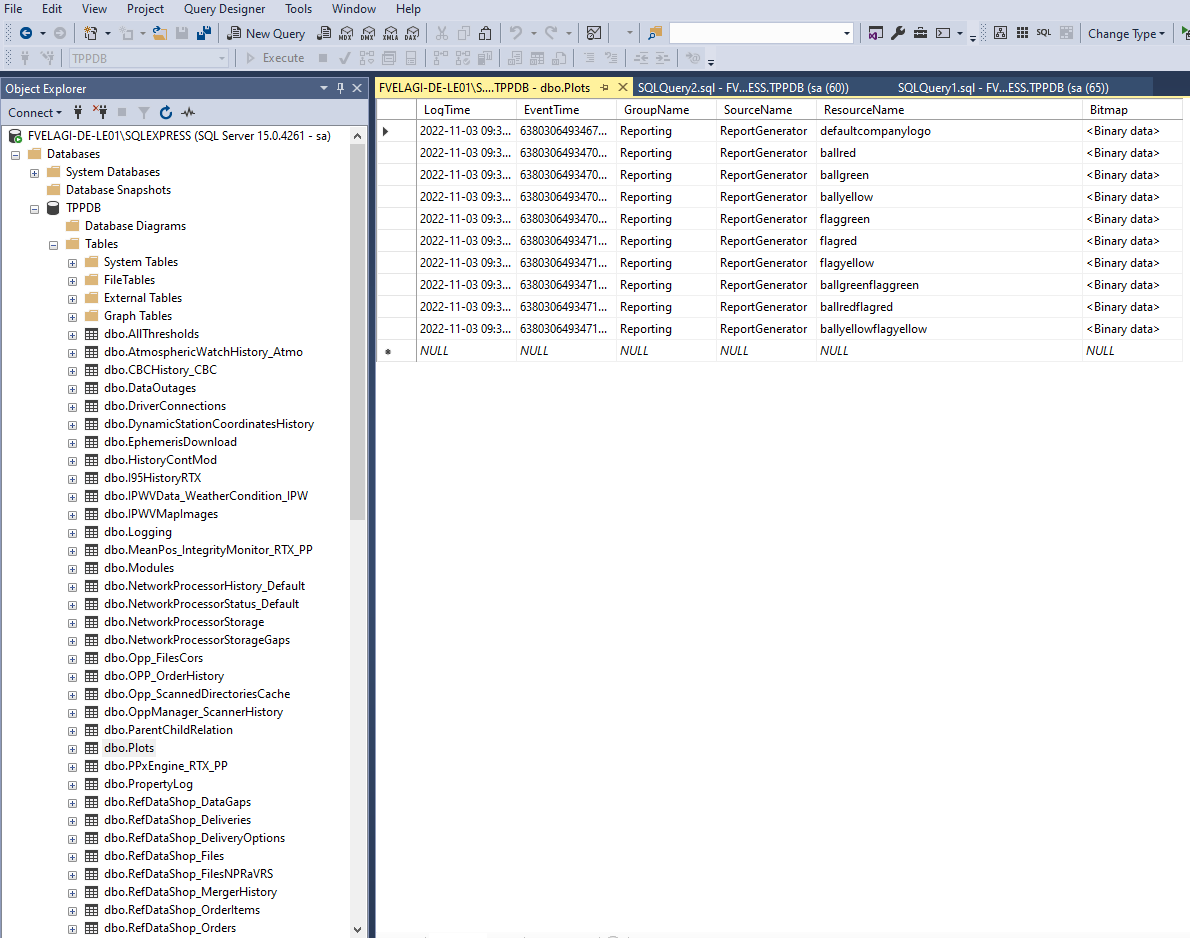
From now on every report will have the new company logo.
2. The other way would be first inserting the new image under a different name like “newcompanylogo”.
The go to C:\Program Files (x86)\Trimble\Trimble Pivot Platform\DBServer\Reports and change in every XML File the “defaultcompanylogo” to the new name “newcompanylogo”.
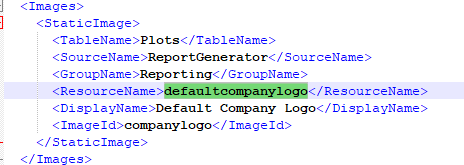
This way every report will also have the new logo but you could customize that some of the reports would get the new logo.
Please let us know if this works for you. Tomorrow I will talk to the product manager to see if there is some other way to change the logo for the Pivot Web HTML reports, but I think, if the image is coming from the database, this is the way.
Thanks and kind regards.
Feriz Velagic
Technical Support Specialist | Trimble Advanced Positioning